
First Login
Sign in, pick the right organization, and confirm branch context before working.
Follow this sequence the first time you enter the dashboard on a new machine or browser session.
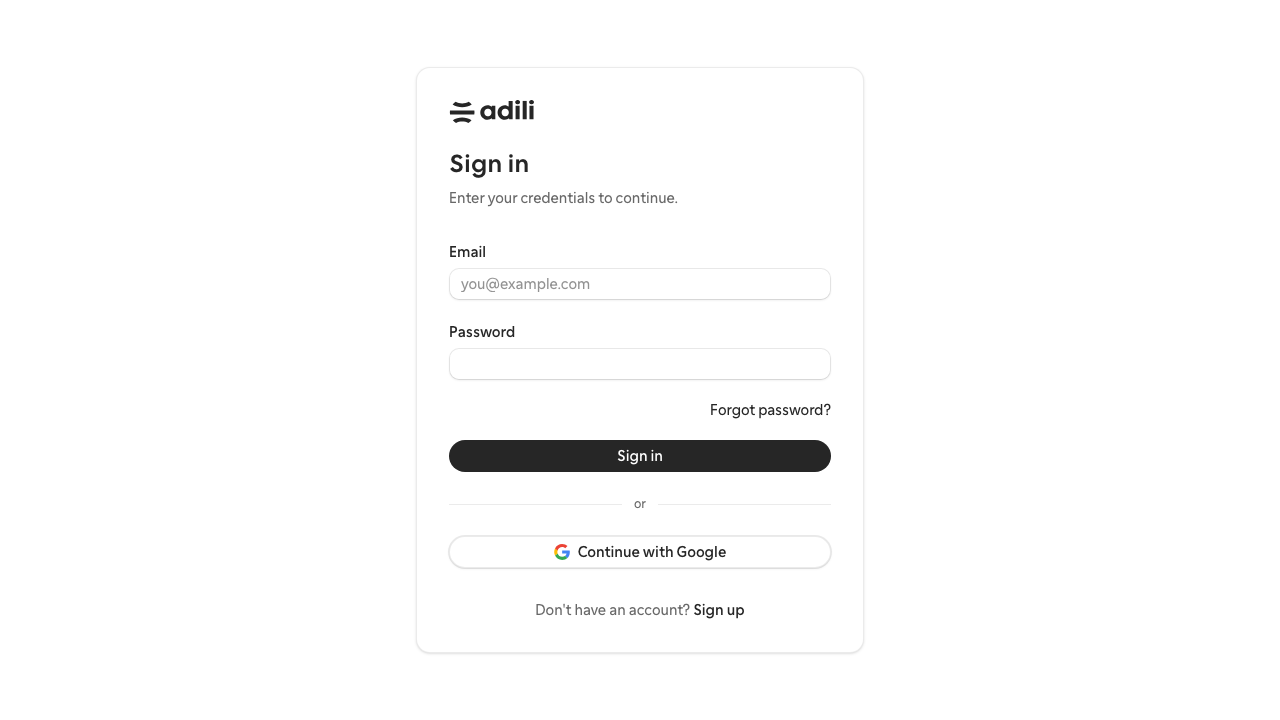
Adili sign-in screen for the first step of the dashboard workflow.
Prerequisites
- An active email and password
- Access to the
mocrofinanceorganization or your assigned live organization - Network access to the Adili app
Step 1: Sign in
- Open
/login. - Enter your email address.
- Enter your password.
- Select Sign in.
Step 2: Choose the organization
After sign-in, Adili redirects to the organization selector when your account belongs to one or more organizations.
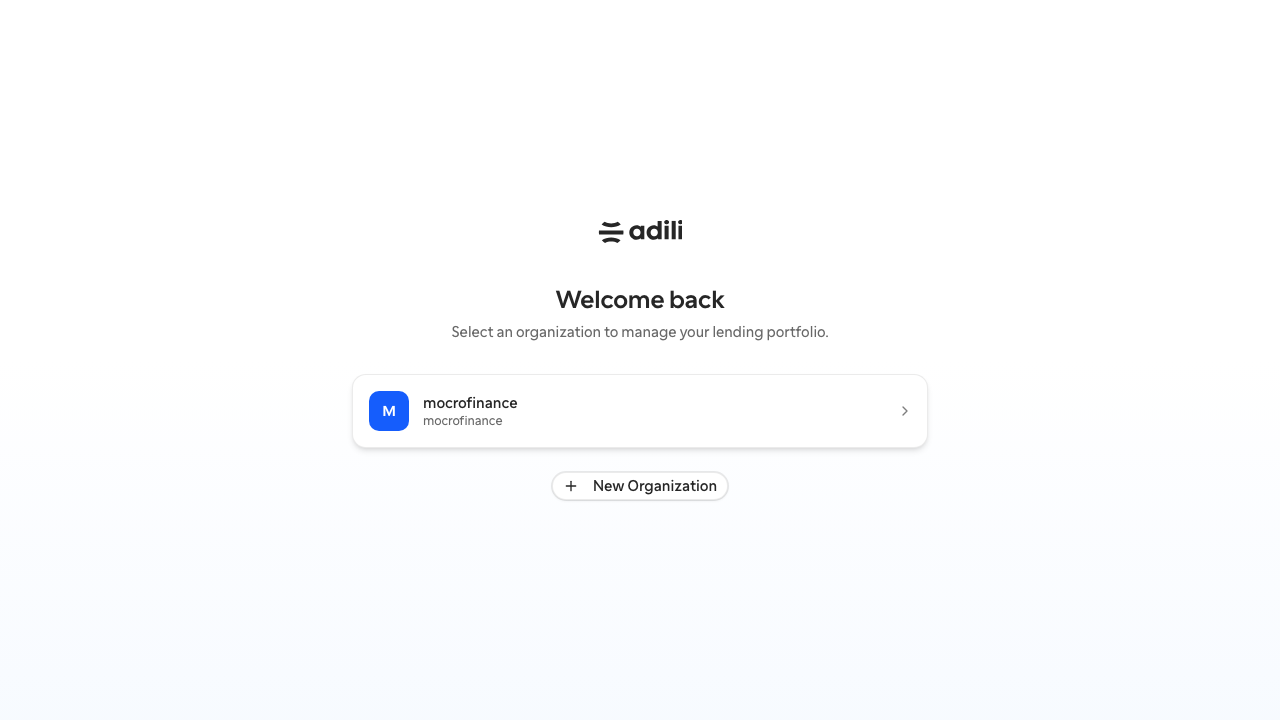
Pick the organization that matches the branch records you are about to work with.
- Review the organization cards.
- Select the correct organization.
- Wait for the branch dashboard to load.
Step 3: Confirm branch context
Before creating or editing data:
- Check the branch switcher in the left sidebar.
- Confirm it shows the correct branch, usually
Head Officefor the tutorial flow. - If needed, switch branches before continuing.
Expected result
- The sidebar is visible.
- The current organization appears under the user menu.
- The branch selector is set correctly.
- You can open Home, Borrowers, Loans, Loan Products, Repayments, Analytics, and Settings.
Troubleshooting
- If sign-in succeeds but the app stays on the login form, refresh once and reopen
/dashboard. - If you land in the wrong organization, return to
/dashboardand choose again. - If you do not see the right branch, ask an administrator to check team or branch assignments.
Short walkthrough: sign in, select the organization, and verify branch context.